> ## Documentation Index
> Fetch the complete documentation index at: https://sonamu.cartanova.ai/llms.txt
> Use this file to discover all available pages before exploring further.
# Migration Tab
> Create and run migrations
In the Migration tab, you can visually manage migrations to **reflect Entity changes in the database**. It replaces the CLI `pnpm migrate` command with a UI.
## Migration Tab Structure
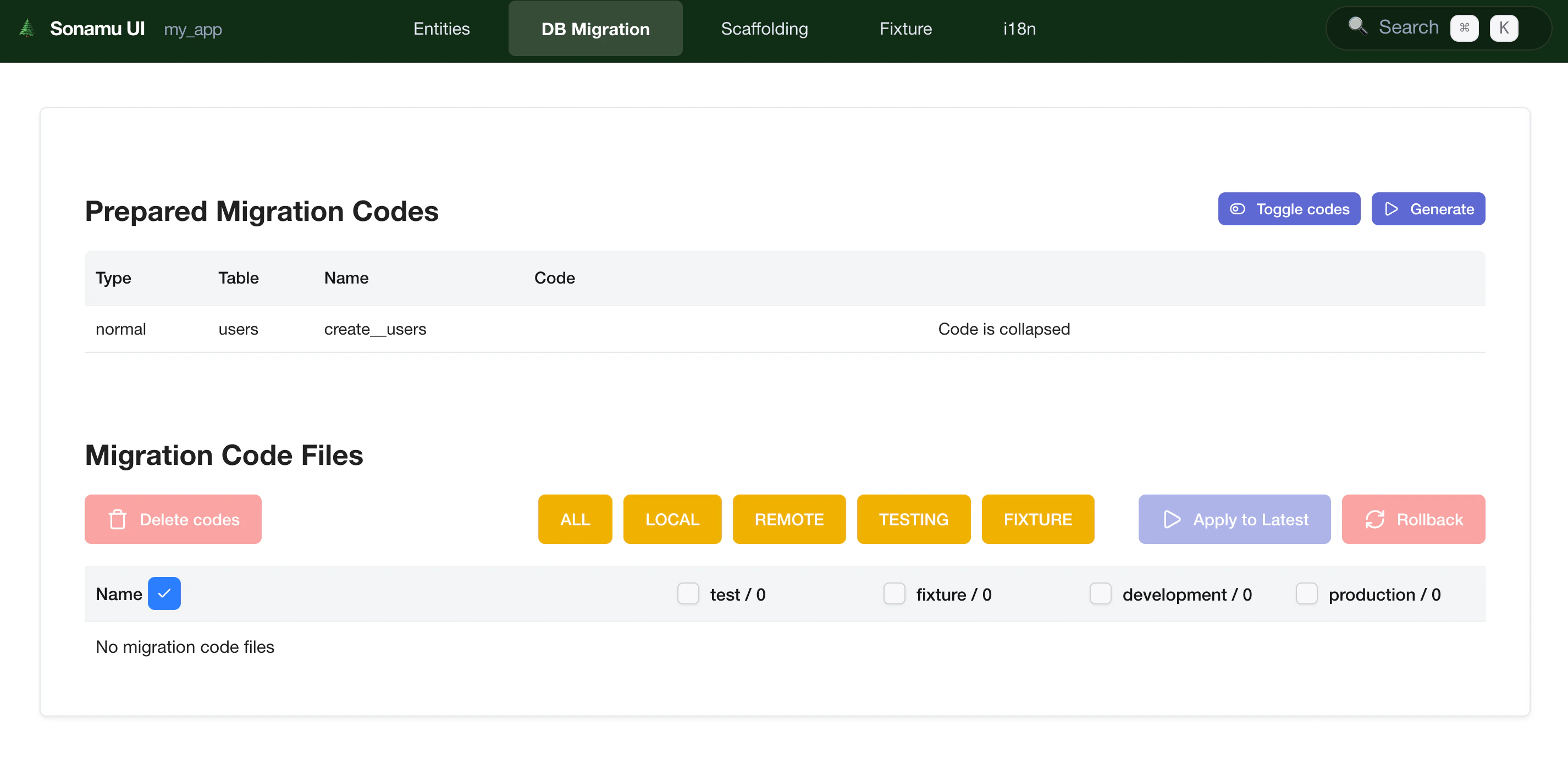
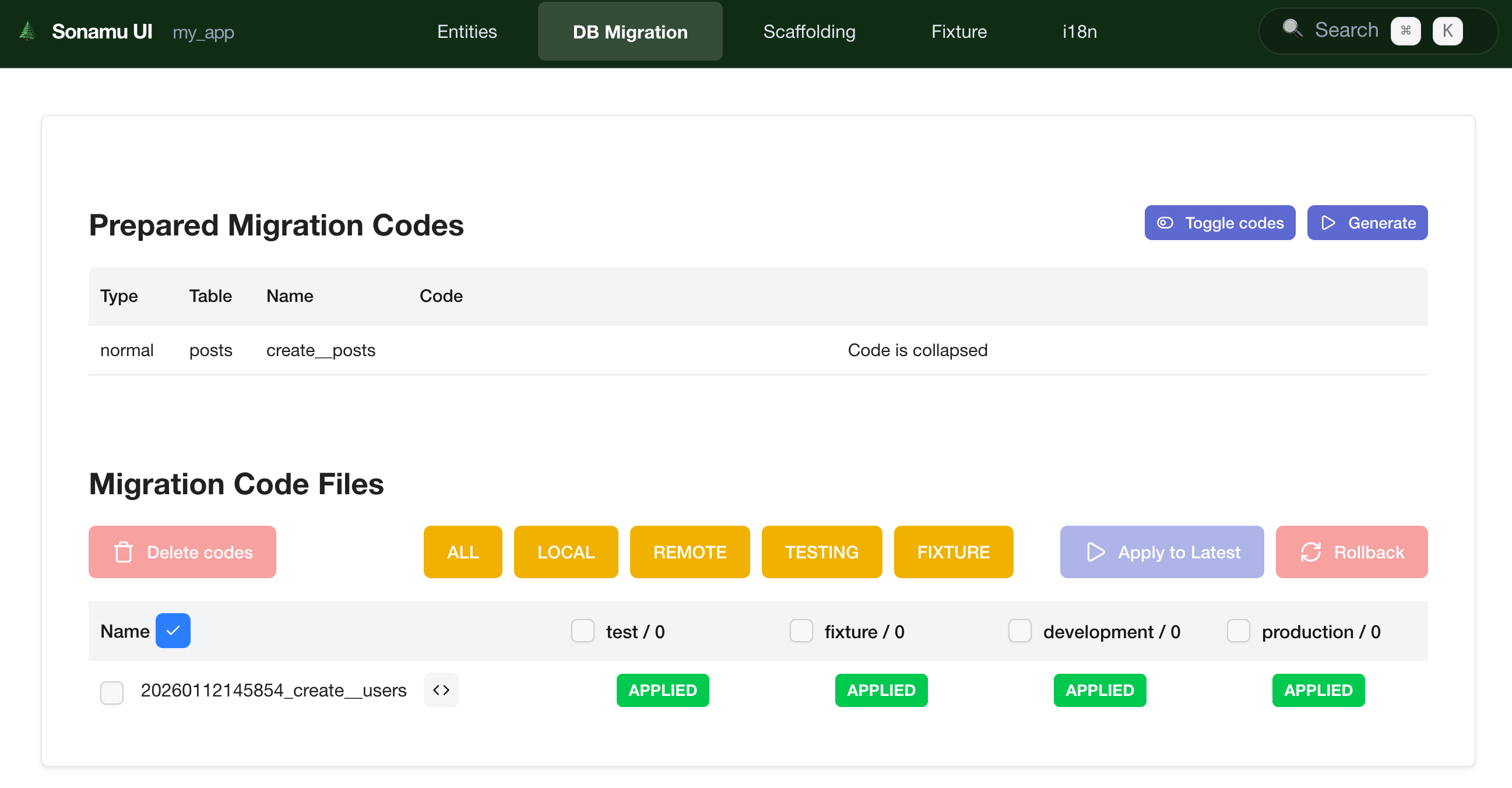 The Migration tab consists of two main areas:
* **Left Sidebar**: Migration list (grouped by Pending/Applied status)
* **Right Content**: Selected migration details and Preview
## Checking Migration Status
### Check Status
Click the **\[Check Status]** button to check the current migration status.
| Status | Description | Display |
| ----------- | ------------------------------- | --------- |
| **Pending** | Migrations not yet applied | 📋 Yellow |
| **Applied** | Already applied migrations | ✅ Green |
| **Failed** | Error occurred during execution | ❌ Red |
### Per-Database Status
When multiple databases are configured, you can check status for each DB individually:
```
Development Master: ✅ Up to date (v20240115_143022)
Testing: ⚠️ 2 pending migrations
Production: ✅ Up to date (v20240115_143022)
```
## Creating Migrations
Sonamu automatically generates migrations when you modify an Entity.
### Auto-generated Cases
When there are Entity changes like:
| Change Type | Example |
| ------------------------ | ---------------------- |
| **Table creation** | Add new Entity |
| **Column addition** | Add Property |
| **Column modification** | Change type/length |
| **Column deletion** | Delete Property |
| **Index addition** | Add Index |
| **Foreign key addition** | Add belongsTo relation |
### Checking Migration Files
Click on a generated migration file to preview its contents:
```typescript theme={null}
import type { Knex } from "knex";
export async function up(knex: Knex): Promise {
await knex.schema.alterTable("users", (table) => {
table.string("phone", 20).nullable();
});
}
export async function down(knex: Knex): Promise {
await knex.schema.alterTable("users", (table) => {
table.dropColumn("phone");
});
}
```
## Running Migrations
### Run Single Migration
1. Select migration file
2. Click **\[Apply]** button
3. Click **\[Confirm]** in the confirmation modal
**Execution process**:
```
Development Master:
✓ 20240116_101530_add_user_phone (0.2s)
Testing:
✓ 20240116_101530_add_user_phone (0.2s)
All migrations applied successfully!
```
### Run All Pending Migrations
Click the **\[Run All]** button to run all pending migrations in order.
**Production caution**: **Always backup** before running migrations on production databases.
## Rolling Back Migrations
### Single Rollback
1. Select an Applied status migration
2. Click **\[Rollback]** button
3. Click **\[Confirm]** in the confirmation modal
**Rollback process**:
```
Rolling back last migration...
Development Master:
✓ Rollback 20240116_101530_add_user_phone
Rollback completed successfully!
```
**Data loss risk**: Rollback can delete tables or columns, which may result in **data loss**.
## Migration Preview
You can preview what changes will occur before running a migration.
### Preview Contents
```
📋 Migration: 20240116_101530_add_user_profile
Changes:
✅ Table: users
+ column: profile_image (string, nullable)
+ column: bio (text, nullable)
+ index: (email) unique
⚠️ Table: posts
- column: deprecated_field
⚠️ Warning: Data in this column will be lost!
```
**Icon meanings**:
* ✅ Addition: New tables/columns/indexes
* 🔄 Modification: Existing column type/length changes
* ⚠️ Deletion: Table/column deletion (potential data loss)
## Multi-Database Management
Sonamu can manage multiple databases simultaneously.
### Database Selection
You can select target databases when running migrations:
* ☑️ Development Master
* ☑️ Testing
* ☐ Production (manual selection)
By default, migrations are automatically applied to databases ending with `_master` and the `test`
database. Production databases require **explicit selection** to apply.
## Migration Order
Migrations are executed in **timestamp order of filenames**:
```
✅ 20240115_120000_create_users_table.ts
✅ 20240115_130000_create_posts_table.ts
📋 20240116_101530_add_user_phone.ts ← Next to run
📋 20240116_102045_add_post_tags.ts
```
### Changing Order
If you need to change the order:
1. Modify the timestamp in the migration filename
2. Change directly in the file system
3. Refresh in the UI
**Foreign key caution**: Referenced tables must be created first. Example: For `posts.user_id` →
`users.id` relationship, `users` table must be created first
## Troubleshooting
### Migration Failed
**Symptom**: Error during migration execution
**Causes and solutions**:
| Error | Cause | Solution |
| ---------------------- | -------------------------------- | ----------------------------- |
| Foreign key constraint | Referenced table doesn't exist | Create referenced table first |
| Column already exists | Column already exists | Check migration file |
| Cannot drop column | Data exists or constraints exist | Delete constraints first |
### Migration Record Mismatch
**Symptom**: Actual DB state differs from migration records
**Solution**:
```bash theme={null}
# Run in CLI
pnpm migrate clear # Delete migration records
pnpm migrate status # Check current status
```
### Cannot Rollback
**Symptom**: Error when attempting rollback
**Cause**: `down()` function not properly defined
**Solution**: Open migration file and fix the `down()` function
## Practical Tips
### 1. Migrate in Small Units
```bash theme={null}
# ❌ Bad example: All changes at once
- Modify 10 Entities simultaneously
- Run migration once
# ✅ Good example: Break into small units
- Modify 1 Entity at a time
- Create and run migration
- Test, then proceed to next Entity
```
### 2. Test Before Production
```
1. Test on Development DB
↓
2. Verify on Testing DB
↓
3. Backup data
↓
4. Apply to Production DB
```
### 3. Migration Record Management
* Commit migration files to Git
* Specify changes in commit messages
* Share migration order with team members
## Next Steps
Auto-generate Model code
Manage migrations via CLI
The Migration tab consists of two main areas:
* **Left Sidebar**: Migration list (grouped by Pending/Applied status)
* **Right Content**: Selected migration details and Preview
## Checking Migration Status
### Check Status
Click the **\[Check Status]** button to check the current migration status.
| Status | Description | Display |
| ----------- | ------------------------------- | --------- |
| **Pending** | Migrations not yet applied | 📋 Yellow |
| **Applied** | Already applied migrations | ✅ Green |
| **Failed** | Error occurred during execution | ❌ Red |
### Per-Database Status
When multiple databases are configured, you can check status for each DB individually:
```
Development Master: ✅ Up to date (v20240115_143022)
Testing: ⚠️ 2 pending migrations
Production: ✅ Up to date (v20240115_143022)
```
## Creating Migrations
Sonamu automatically generates migrations when you modify an Entity.
### Auto-generated Cases
When there are Entity changes like:
| Change Type | Example |
| ------------------------ | ---------------------- |
| **Table creation** | Add new Entity |
| **Column addition** | Add Property |
| **Column modification** | Change type/length |
| **Column deletion** | Delete Property |
| **Index addition** | Add Index |
| **Foreign key addition** | Add belongsTo relation |
### Checking Migration Files
Click on a generated migration file to preview its contents:
```typescript theme={null}
import type { Knex } from "knex";
export async function up(knex: Knex): Promise {
await knex.schema.alterTable("users", (table) => {
table.string("phone", 20).nullable();
});
}
export async function down(knex: Knex): Promise {
await knex.schema.alterTable("users", (table) => {
table.dropColumn("phone");
});
}
```
## Running Migrations
### Run Single Migration
1. Select migration file
2. Click **\[Apply]** button
3. Click **\[Confirm]** in the confirmation modal
**Execution process**:
```
Development Master:
✓ 20240116_101530_add_user_phone (0.2s)
Testing:
✓ 20240116_101530_add_user_phone (0.2s)
All migrations applied successfully!
```
### Run All Pending Migrations
Click the **\[Run All]** button to run all pending migrations in order.
**Production caution**: **Always backup** before running migrations on production databases.
## Rolling Back Migrations
### Single Rollback
1. Select an Applied status migration
2. Click **\[Rollback]** button
3. Click **\[Confirm]** in the confirmation modal
**Rollback process**:
```
Rolling back last migration...
Development Master:
✓ Rollback 20240116_101530_add_user_phone
Rollback completed successfully!
```
**Data loss risk**: Rollback can delete tables or columns, which may result in **data loss**.
## Migration Preview
You can preview what changes will occur before running a migration.
### Preview Contents
```
📋 Migration: 20240116_101530_add_user_profile
Changes:
✅ Table: users
+ column: profile_image (string, nullable)
+ column: bio (text, nullable)
+ index: (email) unique
⚠️ Table: posts
- column: deprecated_field
⚠️ Warning: Data in this column will be lost!
```
**Icon meanings**:
* ✅ Addition: New tables/columns/indexes
* 🔄 Modification: Existing column type/length changes
* ⚠️ Deletion: Table/column deletion (potential data loss)
## Multi-Database Management
Sonamu can manage multiple databases simultaneously.
### Database Selection
You can select target databases when running migrations:
* ☑️ Development Master
* ☑️ Testing
* ☐ Production (manual selection)
By default, migrations are automatically applied to databases ending with `_master` and the `test`
database. Production databases require **explicit selection** to apply.
## Migration Order
Migrations are executed in **timestamp order of filenames**:
```
✅ 20240115_120000_create_users_table.ts
✅ 20240115_130000_create_posts_table.ts
📋 20240116_101530_add_user_phone.ts ← Next to run
📋 20240116_102045_add_post_tags.ts
```
### Changing Order
If you need to change the order:
1. Modify the timestamp in the migration filename
2. Change directly in the file system
3. Refresh in the UI
**Foreign key caution**: Referenced tables must be created first. Example: For `posts.user_id` →
`users.id` relationship, `users` table must be created first
## Troubleshooting
### Migration Failed
**Symptom**: Error during migration execution
**Causes and solutions**:
| Error | Cause | Solution |
| ---------------------- | -------------------------------- | ----------------------------- |
| Foreign key constraint | Referenced table doesn't exist | Create referenced table first |
| Column already exists | Column already exists | Check migration file |
| Cannot drop column | Data exists or constraints exist | Delete constraints first |
### Migration Record Mismatch
**Symptom**: Actual DB state differs from migration records
**Solution**:
```bash theme={null}
# Run in CLI
pnpm migrate clear # Delete migration records
pnpm migrate status # Check current status
```
### Cannot Rollback
**Symptom**: Error when attempting rollback
**Cause**: `down()` function not properly defined
**Solution**: Open migration file and fix the `down()` function
## Practical Tips
### 1. Migrate in Small Units
```bash theme={null}
# ❌ Bad example: All changes at once
- Modify 10 Entities simultaneously
- Run migration once
# ✅ Good example: Break into small units
- Modify 1 Entity at a time
- Create and run migration
- Test, then proceed to next Entity
```
### 2. Test Before Production
```
1. Test on Development DB
↓
2. Verify on Testing DB
↓
3. Backup data
↓
4. Apply to Production DB
```
### 3. Migration Record Management
* Commit migration files to Git
* Specify changes in commit messages
* Share migration order with team members
## Next Steps
Auto-generate Model code
Manage migrations via CLI