> ## Documentation Index
> Fetch the complete documentation index at: https://sonamu.cartanova.ai/llms.txt
> Use this file to discover all available pages before exploring further.
# Installation
> How to install Sonamu VS Code Extension
Here's how to install the VS Code extension for Sonamu development.
## Install from Marketplace
You can install directly from the [VS Code Marketplace](https://marketplace.cursorapi.com/items/?itemName=CartaNova.sonamu).
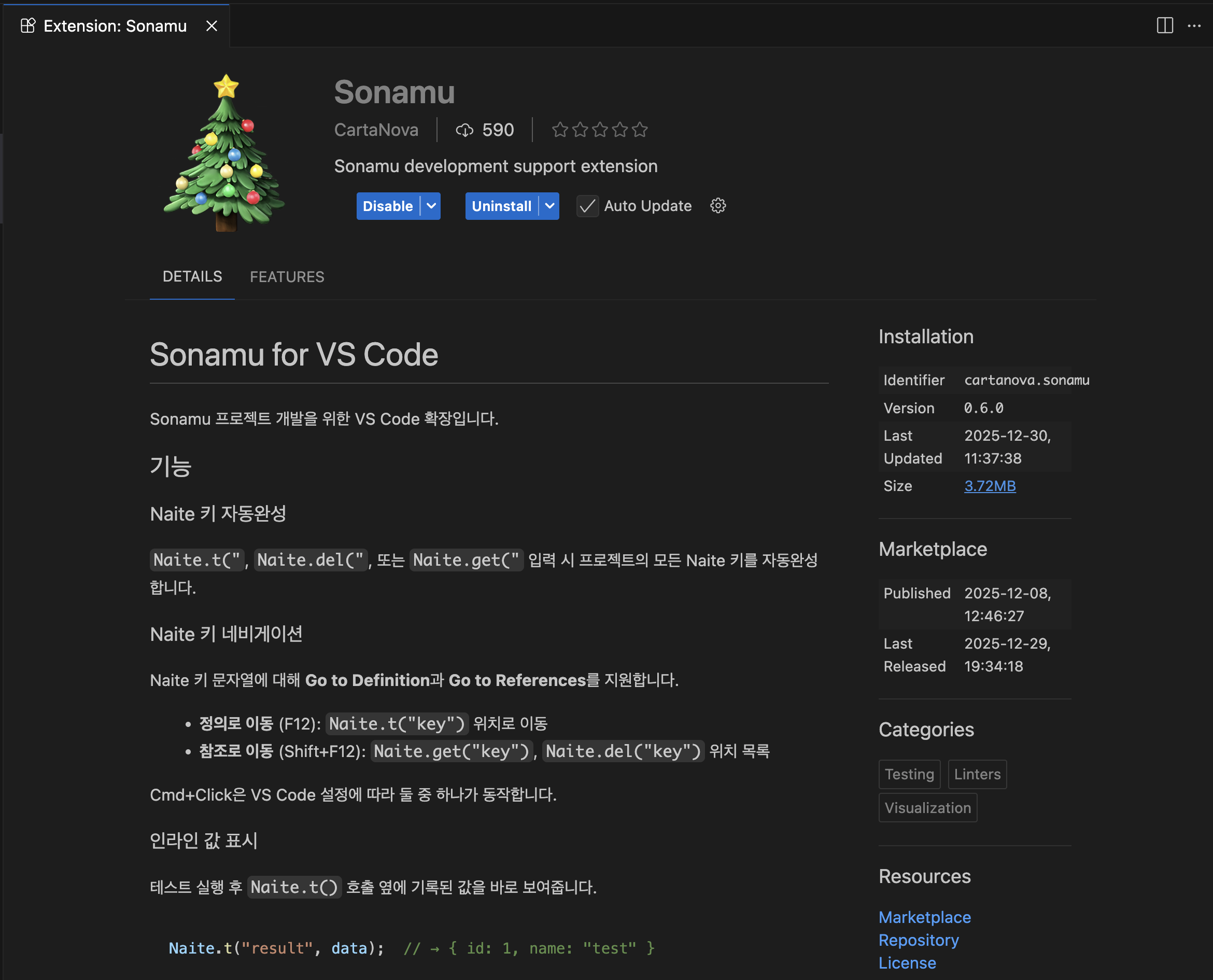
1. Open Extensions tab in VS Code (Cmd+Shift+X)
2. Search for "Sonamu"
3. Click Install button
 ## Build and Install Manually
You can also build from source code and install:
```bash theme={null}
cd ~/Projects/vscode-sonamu
pnpm install && pnpm build
cd packages/extension && pnpm package
code --install-extension sonamu-*.vsix
```
### Update
To update an already installed Extension, add the `--force` option:
```bash theme={null}
code --install-extension sonamu-*.vsix --force
```
## Verify Activation
Once the Extension is properly installed, it automatically activates when there's a `sonamu.config.ts` file in the workspace.
You can verify activation as follows:
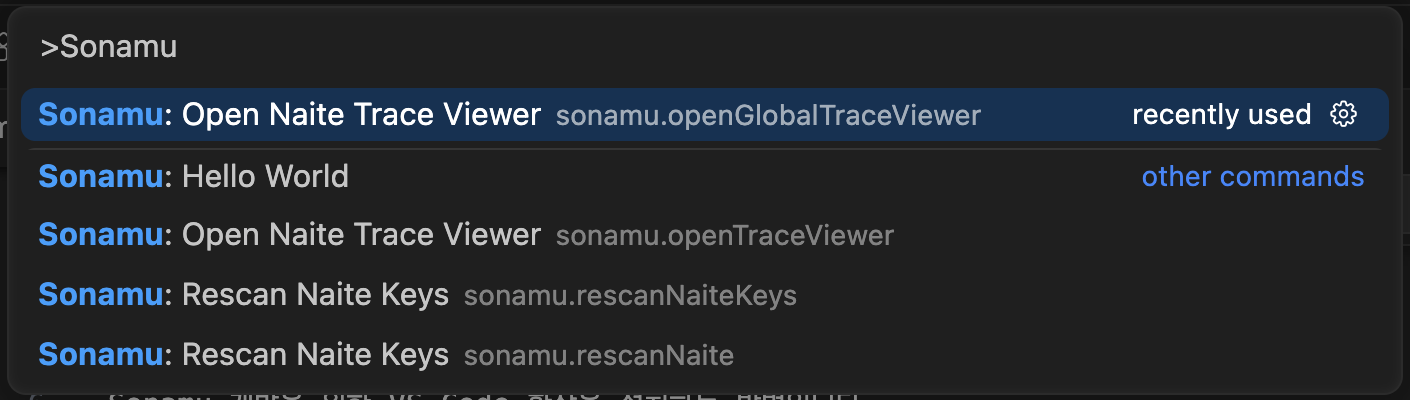
1. Open Command Palette (Cmd+Shift+P)
2. Type "Sonamu"
3. Check if Sonamu-related commands are displayed
## Build and Install Manually
You can also build from source code and install:
```bash theme={null}
cd ~/Projects/vscode-sonamu
pnpm install && pnpm build
cd packages/extension && pnpm package
code --install-extension sonamu-*.vsix
```
### Update
To update an already installed Extension, add the `--force` option:
```bash theme={null}
code --install-extension sonamu-*.vsix --force
```
## Verify Activation
Once the Extension is properly installed, it automatically activates when there's a `sonamu.config.ts` file in the workspace.
You can verify activation as follows:
1. Open Command Palette (Cmd+Shift+P)
2. Type "Sonamu"
3. Check if Sonamu-related commands are displayed