Post entity using Sonamu UI, create a database table, and auto-generate Model files through scaffolding.
Prerequisites
- You must have completed the Quick Start guide and have the development server running.
- The API server must be running at http://localhost:34900.
Step 1: Access Sonamu UI
Open http://localhost:34900/sonamu-ui in your browser.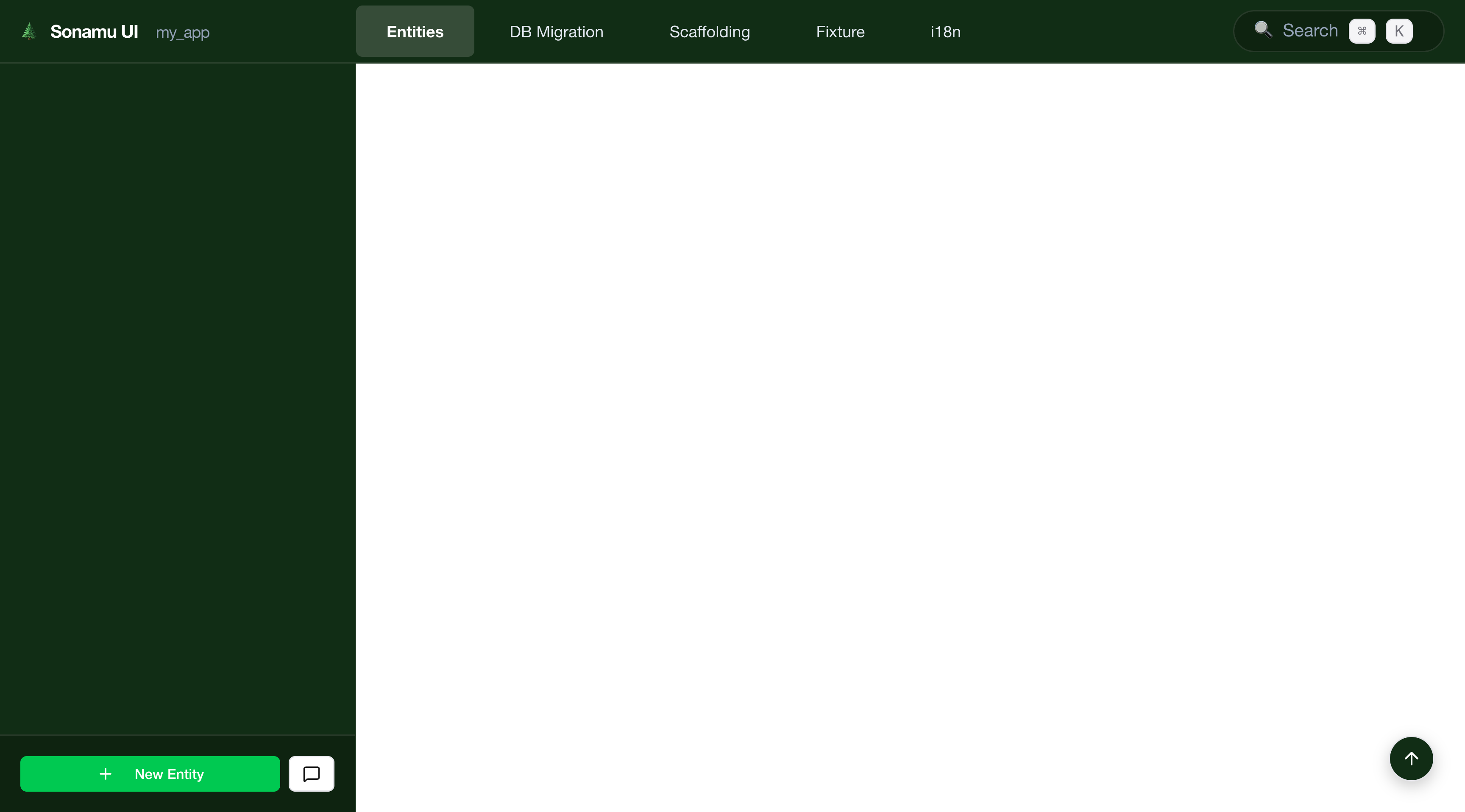
Sonamu UI main screen (Entity, Migration, Scaffolding tabs)
- Create and edit entities
- Add/modify/delete props
- Define relations
- Manage Enum types
- Define Subsets
- Create and run migrations
- Scaffolding (auto-generate Model files)
Step 2: Create a New Entity
Click Entity Tab
Entity tab screen
Click New Entity Button
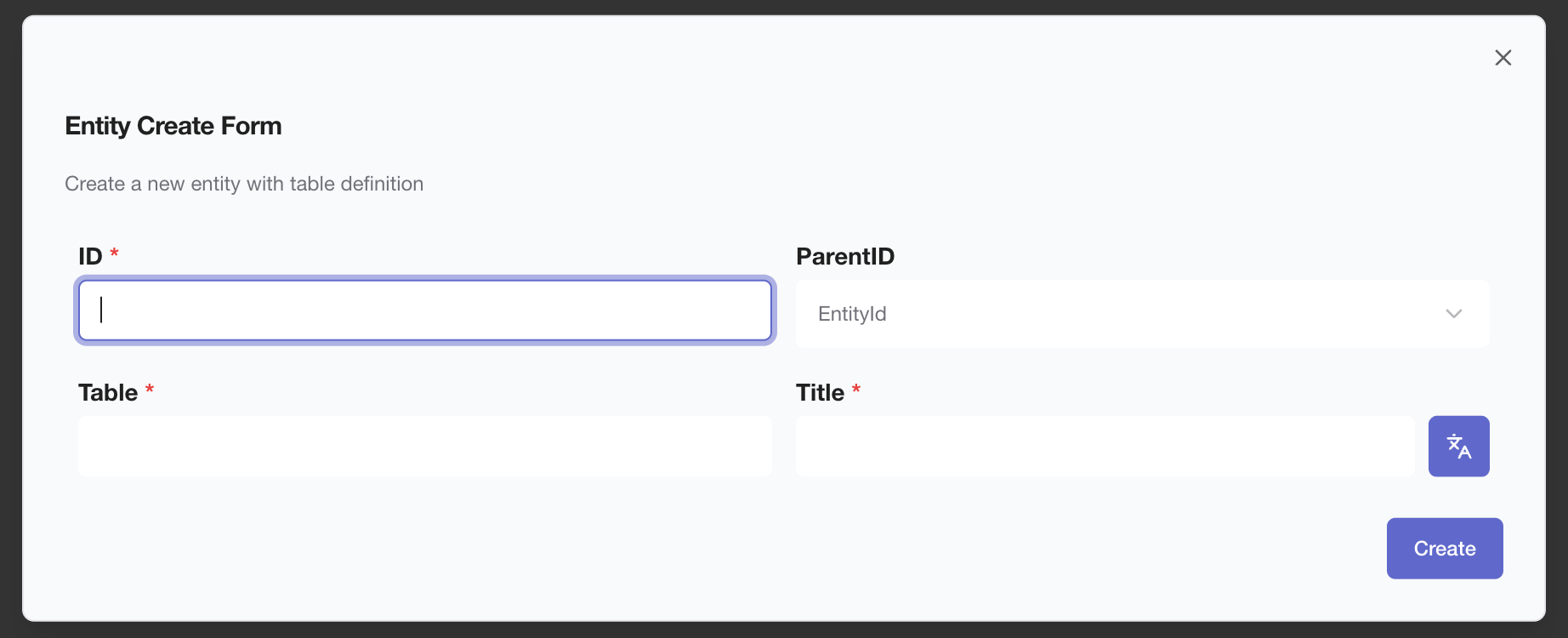
Entity creation modal
Enter Basic Information and Create
- Entity ID:
Post(starts with uppercase, singular) - Table Name:
posts(lowercase, plural) - Title:
Post
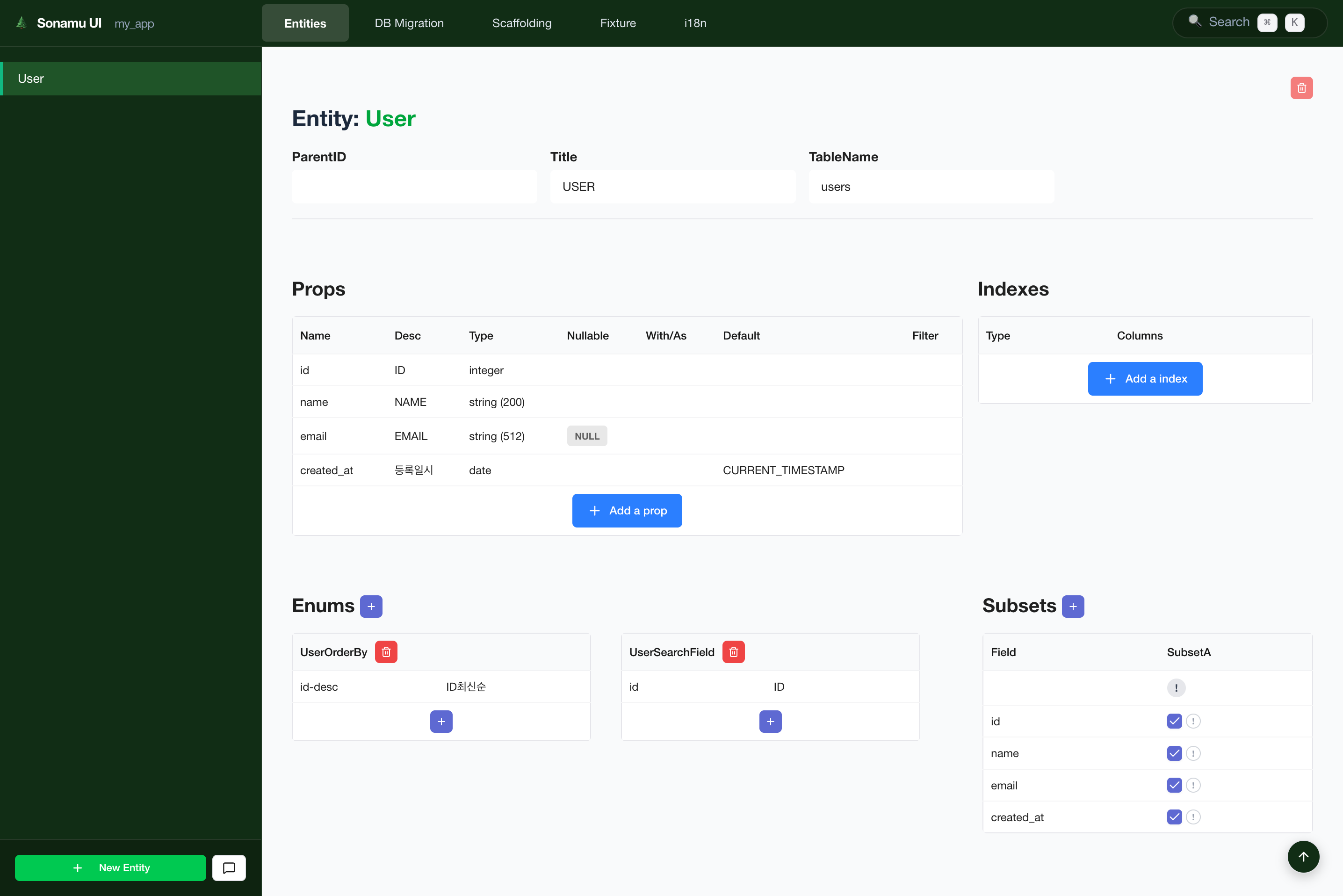
Post entity screen after clicking Create button
Step 3: Define Props
Now add props to thePost entity:
Add Basic Props
How to Configure Each Prop
How to Configure Each Prop
- Name:
id - Type:
integer - Description:
ID
- Name:
created_at - Type:
date - Description:
Created At - DB Default:
CURRENT_TIMESTAMP
- Name:
title - Type:
string - Description:
Title - Length:
255
- Name:
content - Type:
string - Description:
Content - Length: empty (creates TEXT type)
- Name:
author - Type:
string - Description:
Author - Length:
100
- Name:
view_count - Type:
integer - Description:
View Count - DB Default:
0
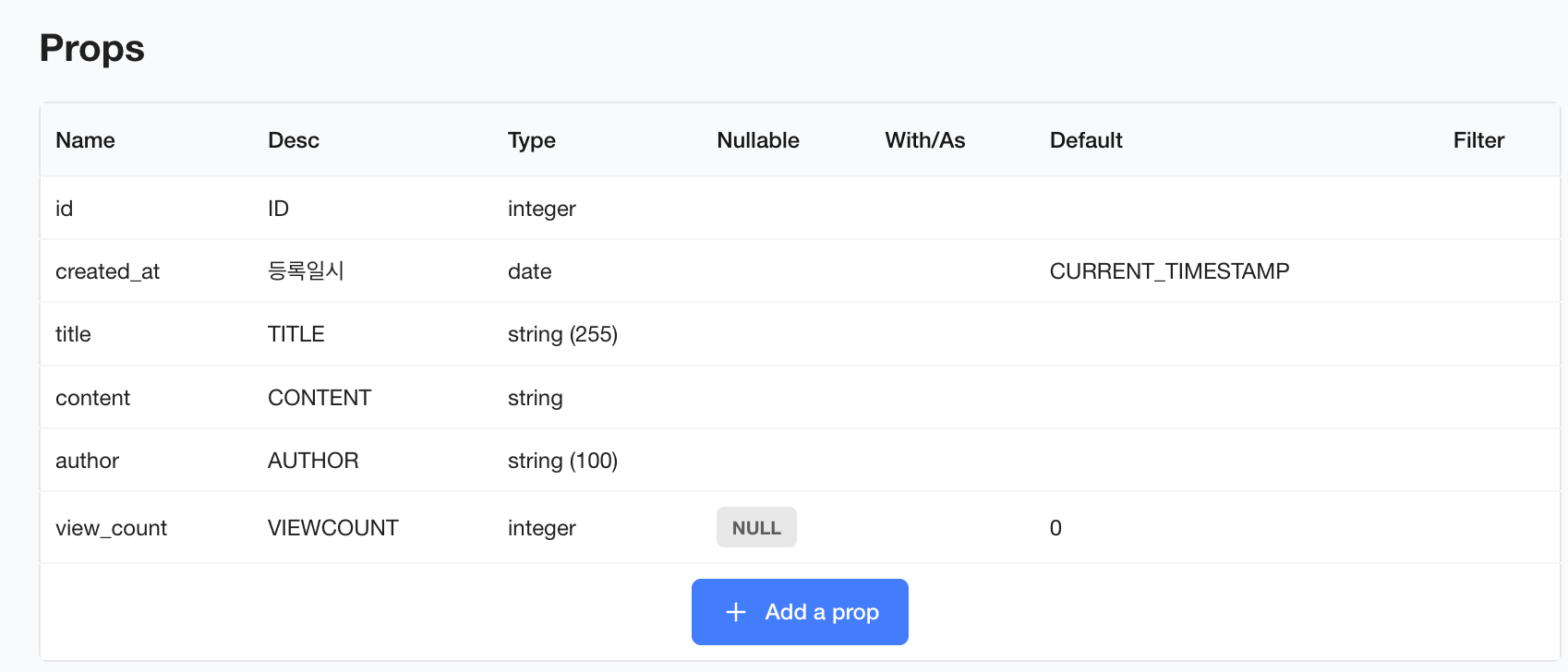
Prop addition UI (Add a prop button and prop list with all props added)
Define Subsets
- Subset A (Admin):
id,created_at,title,content,author,view_count- Full information - Subset P (Public):
id,title,author,created_at- Public information - Subset SS (Secure Short):
id,title,author- Summary information
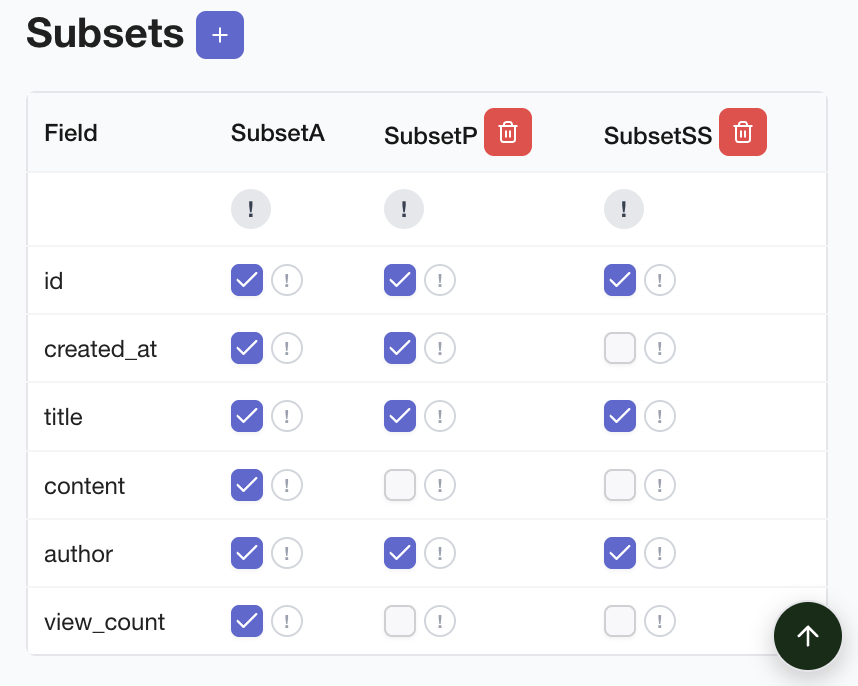
Subset editing screen (with Subset A, P, SS defined)
Define Enums
id-desc: ID newest firstcreated_at-desc: Created at newest firstview_count-desc: Highest view count first
id: IDtitle: Titleauthor: Author
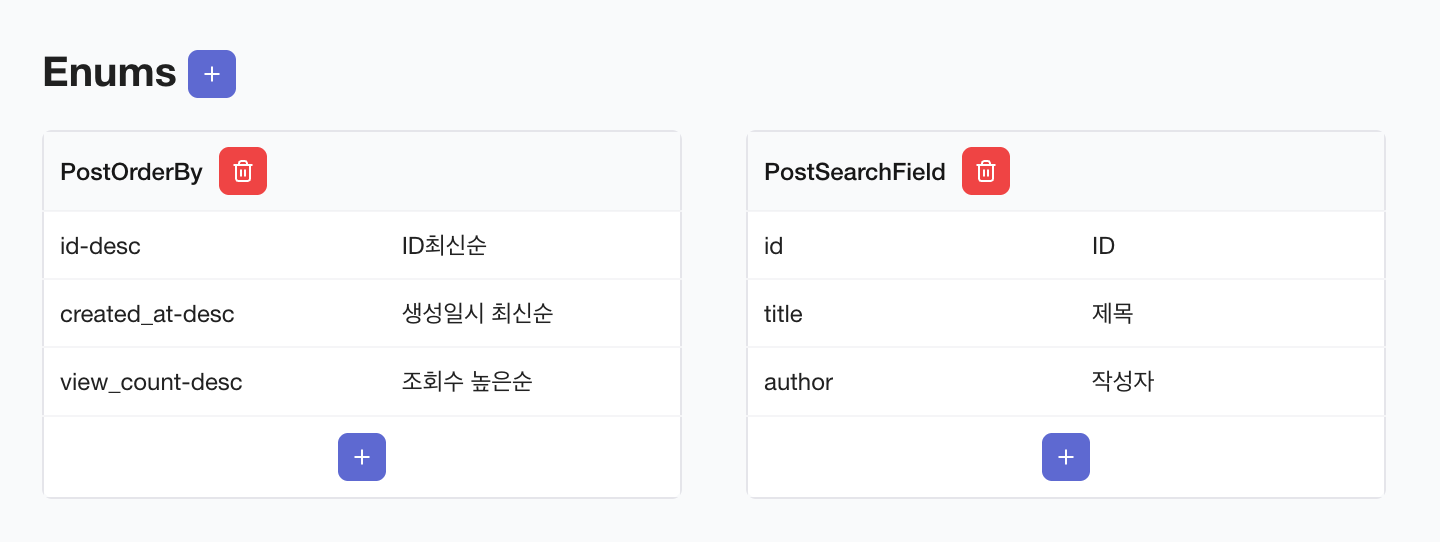
Enum editing screen (with PostOrderBy, PostSearchField defined)
Step 4: Database Migration
Now you need to apply the entity definition to the database.Go to Migration Tab
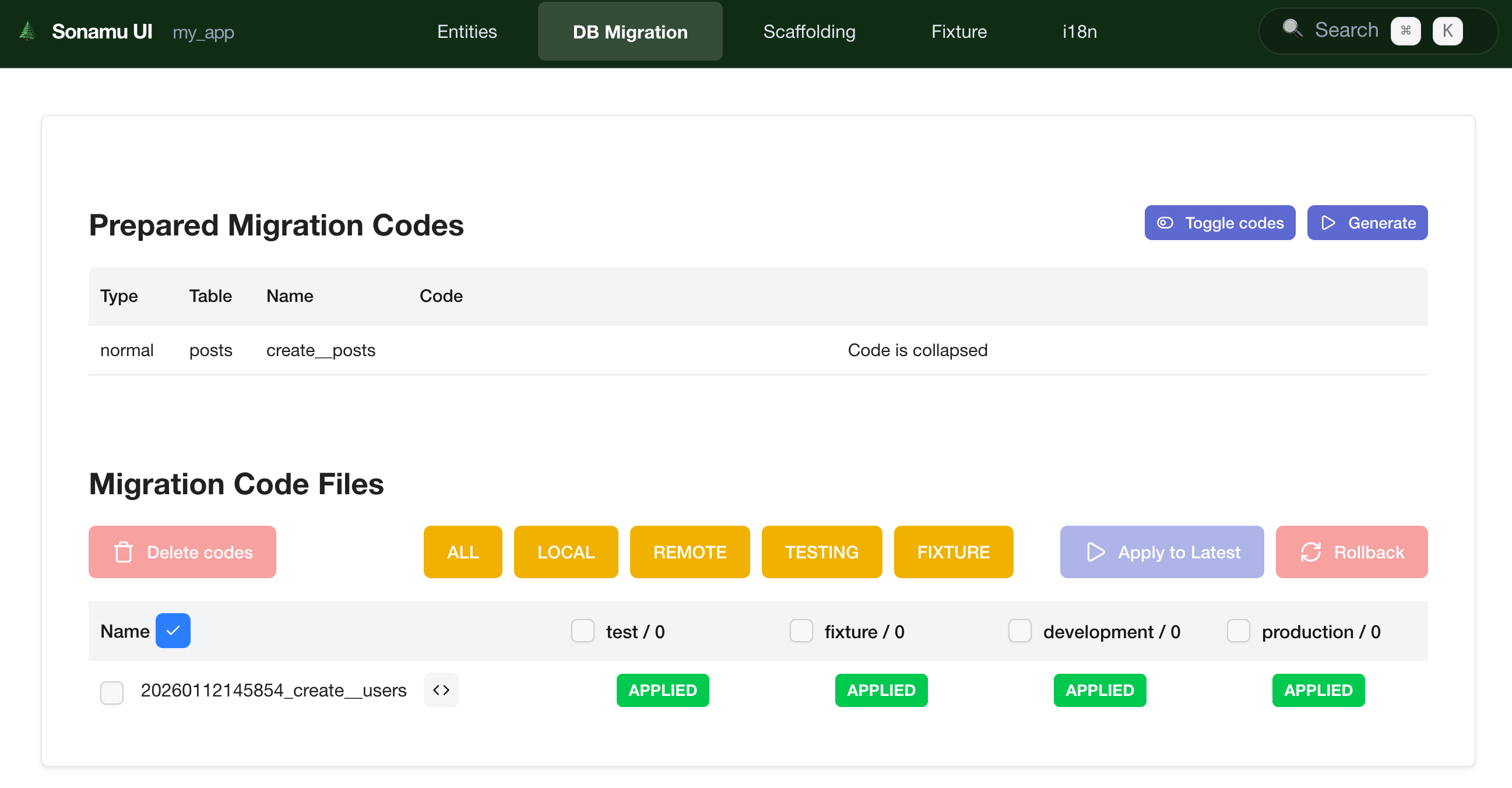
Migration tab screen (migration list or Generate Migration button)
Generate Migration
<> button in the generated file list to open the migration file page in Cursor. The file content looks like this: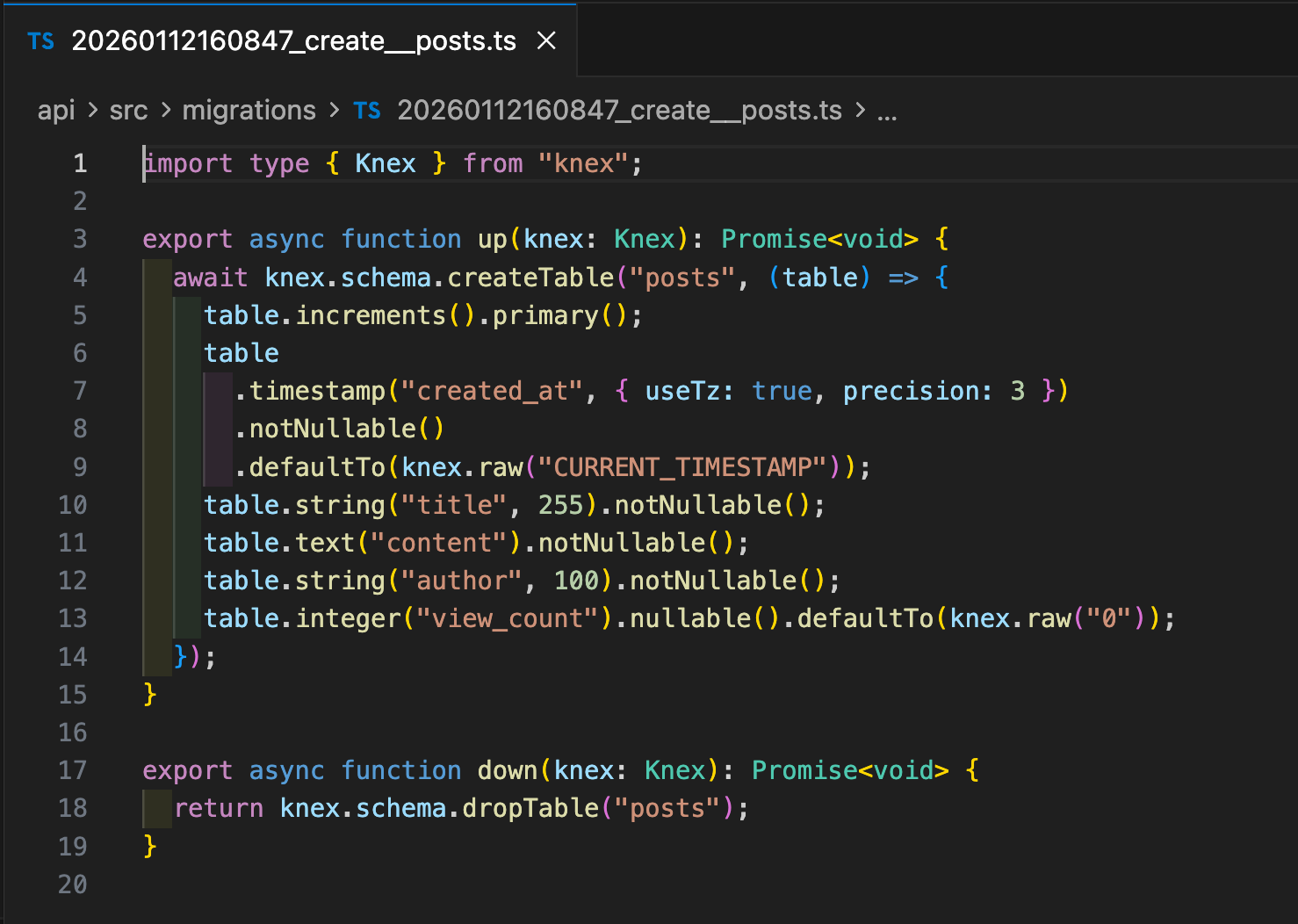
Migration file opened in Cursor
Run Migration
Migration execution complete
Verify
posts table was created.Step 5: Scaffolding (Auto-Generate Model Files)
After migration is complete, you can auto-generate Model files using Sonamu’s scaffolding feature.Go to Scaffolding Tab
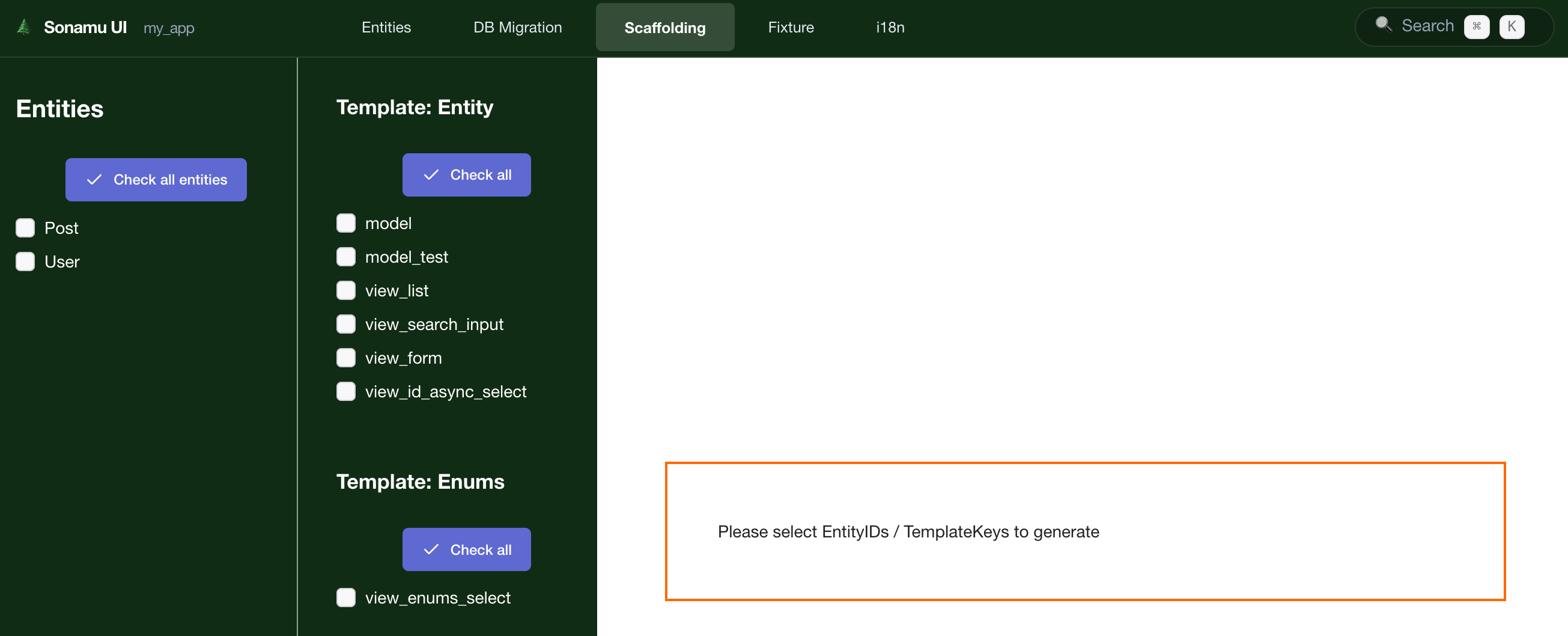
Scaffolding tab screen (entity list and template selection UI)
Select Post Entity
Select Templates
- ✅ Model -
post.model.ts(business logic and API endpoints) - ✅ Model Test -
post.model.test.ts(test file)
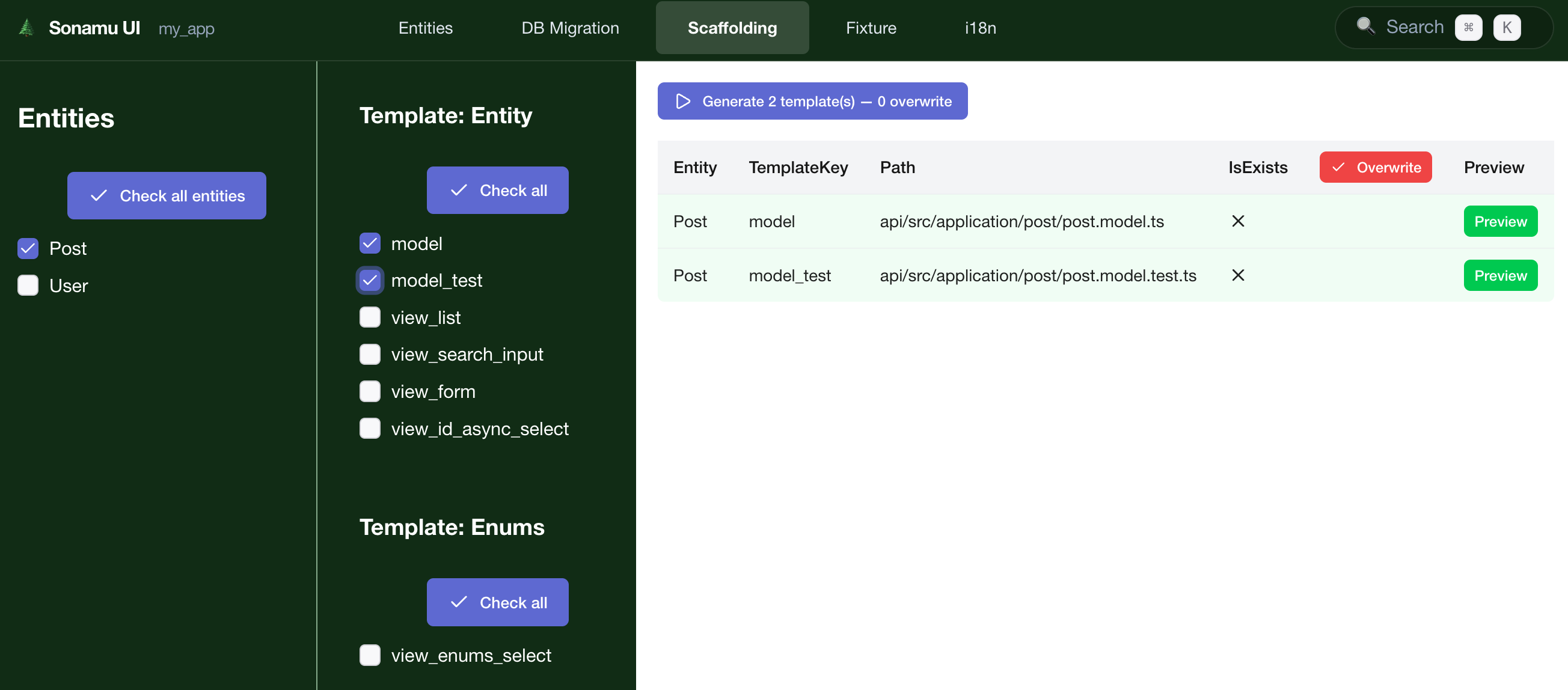
Template selection UI (with Model, Model Test checkboxes selected)
Preview (Optional)
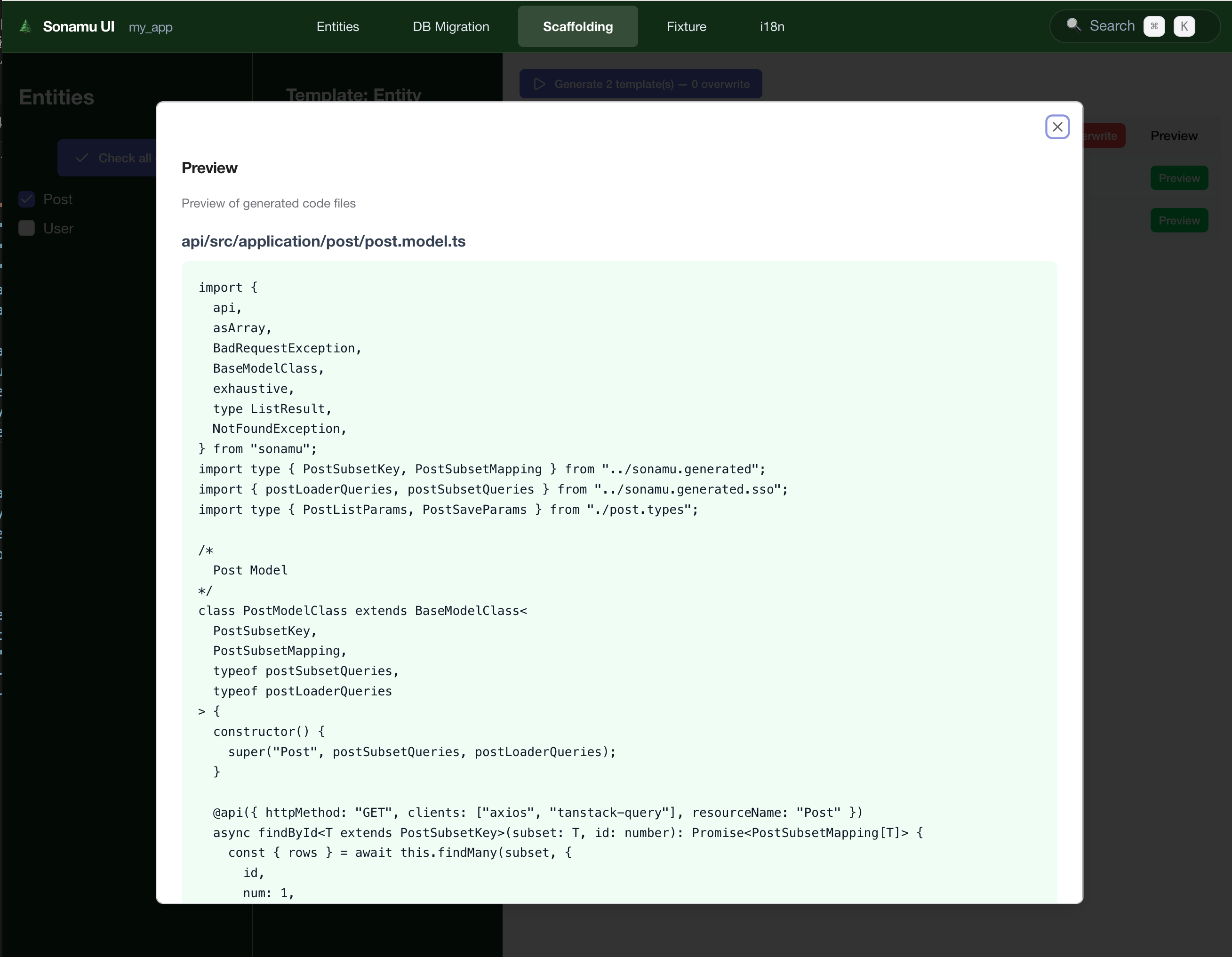
Code preview modal (model.ts code to be generated)
Generate
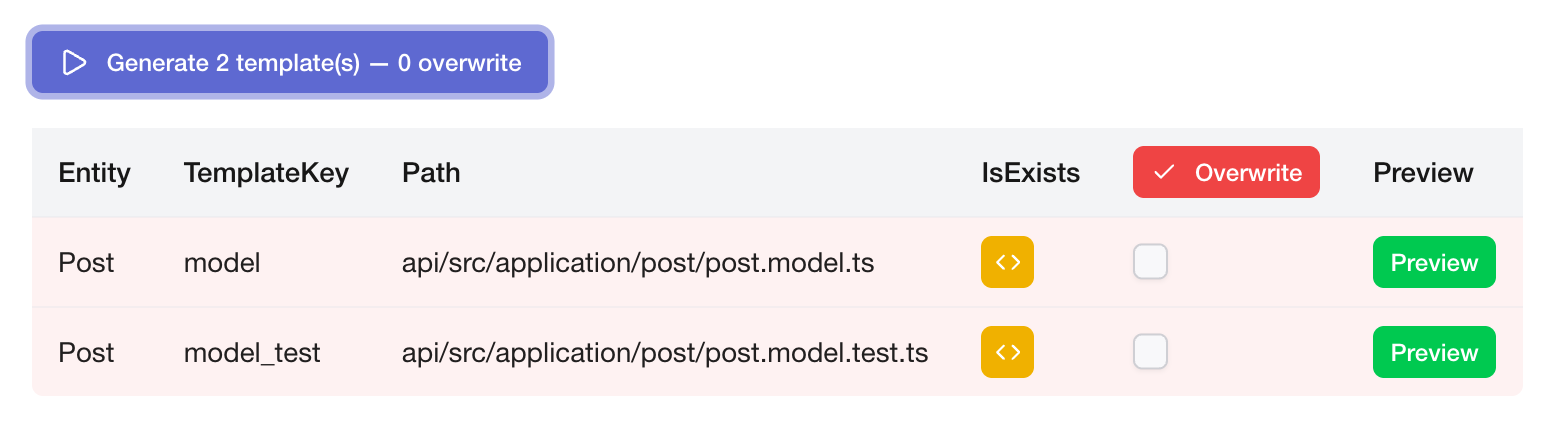
Generated file list
api/src/application/post/post.model.tsapi/src/application/post/post.model.test.ts
Step 6: Review Generated Model File
Let’s check thepost.model.ts file generated by scaffolding:
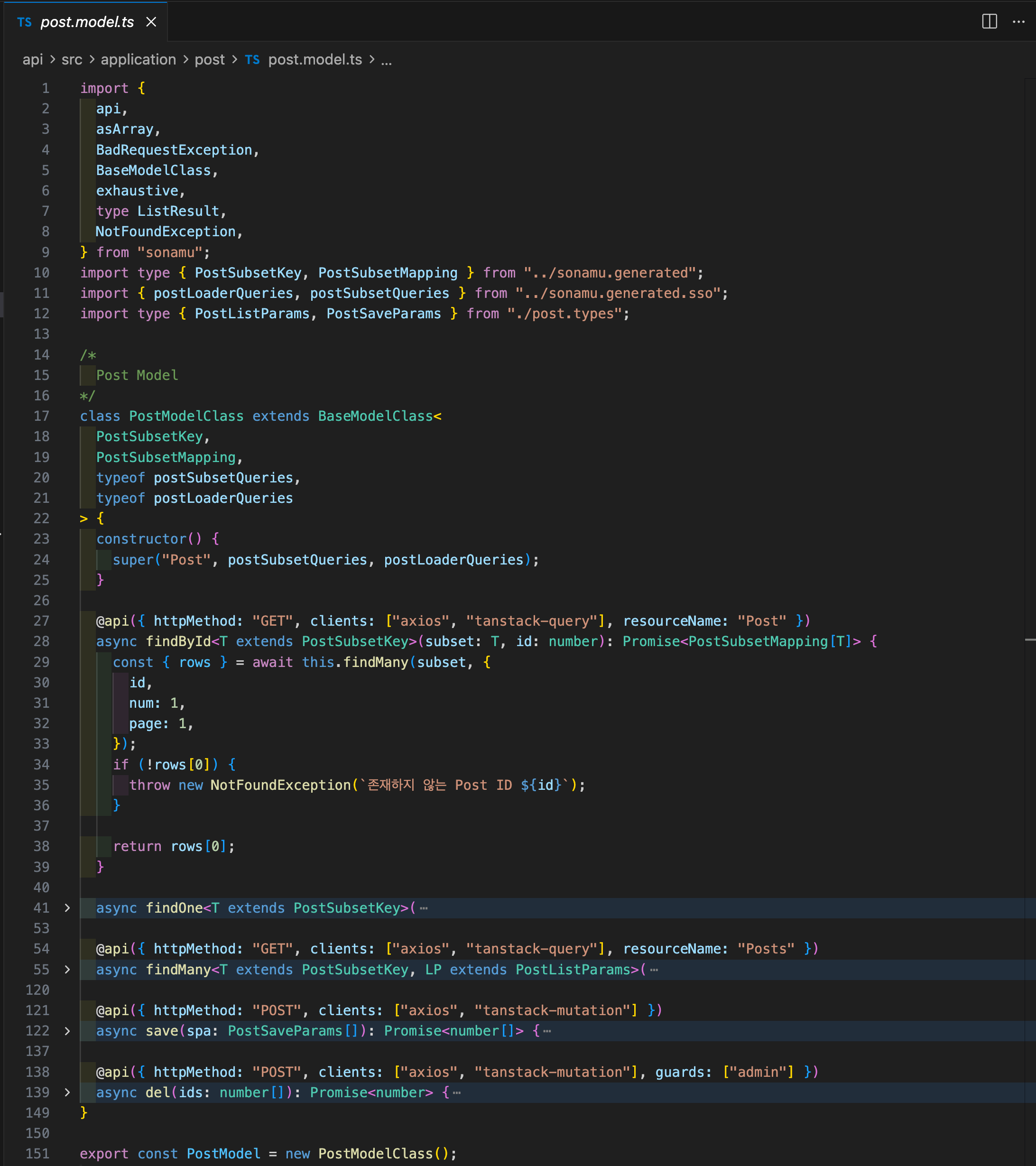
post.model.ts file opened in VS Code
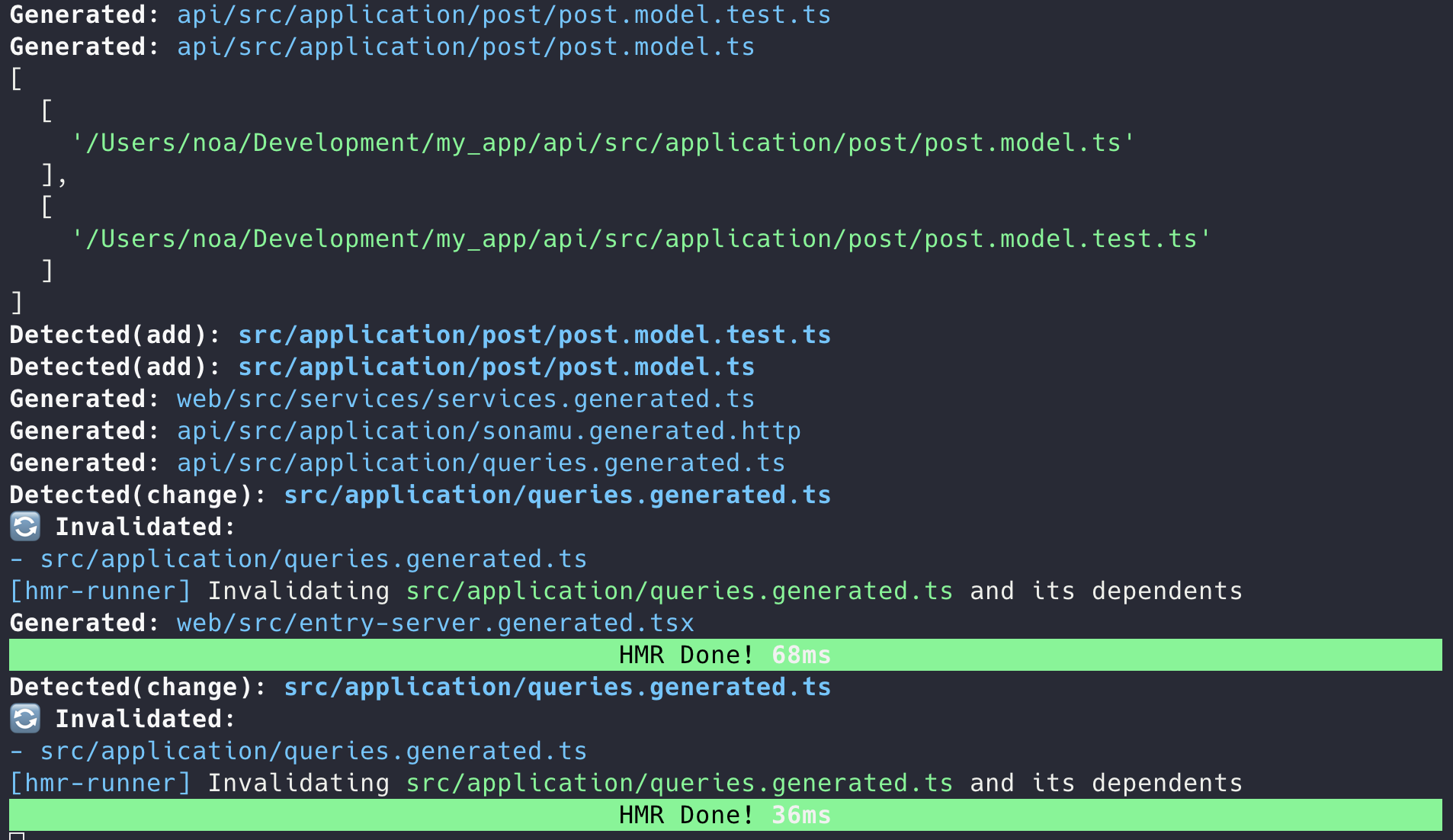
HMR restart logs in terminal
Step 7: Auto-Generate Frontend Service
When you write APIs, frontend Service files are automatically generated.📸 Needed: VS Code screen showing web/src/services/PostService.ts file created
Step 8: Test the API
Now let’s test if the API is working correctly.Test with REST Client
Test in Browser
Navigate to http://localhost:34900/api/posts?subset=C to view the JSON response.📸 Needed: Browser screen showing API response JSON (post list data)
Complete! 🎉
Congratulations! You’ve successfully created your first entity. You’ve completed the following:- ✅ Defined entity with Sonamu UI
- ✅ Created database table
- ✅ Auto-generated types and schemas
- ✅ Auto-generated Model and Test files with scaffolding
- ✅ Auto-generated REST API
- ✅ Auto-generated frontend Service
- ✅ Tested the API