Development Cycle Overview
Sonamu development follows this cycle:1
1. Entity Design and Definition
Define the entity structure in Sonamu UI.
2
2. Migration
Create or modify database tables.
3
3. Scaffolding
Auto-generate Model and test files.
4
4. Business Logic Implementation
Add business logic to the generated Model files.
5
5. Synchronization (Sync)
Synchronize changes with the frontend.
6
6. Testing
Test the code you’ve written.
7
7. Frontend Integration
Implement UI using the auto-generated Services.
Step 1: Entity Design and Definition
Create Entity in Sonamu UI
Development always starts by defining entities in Sonamu UI.- Add new entity in Entity tab
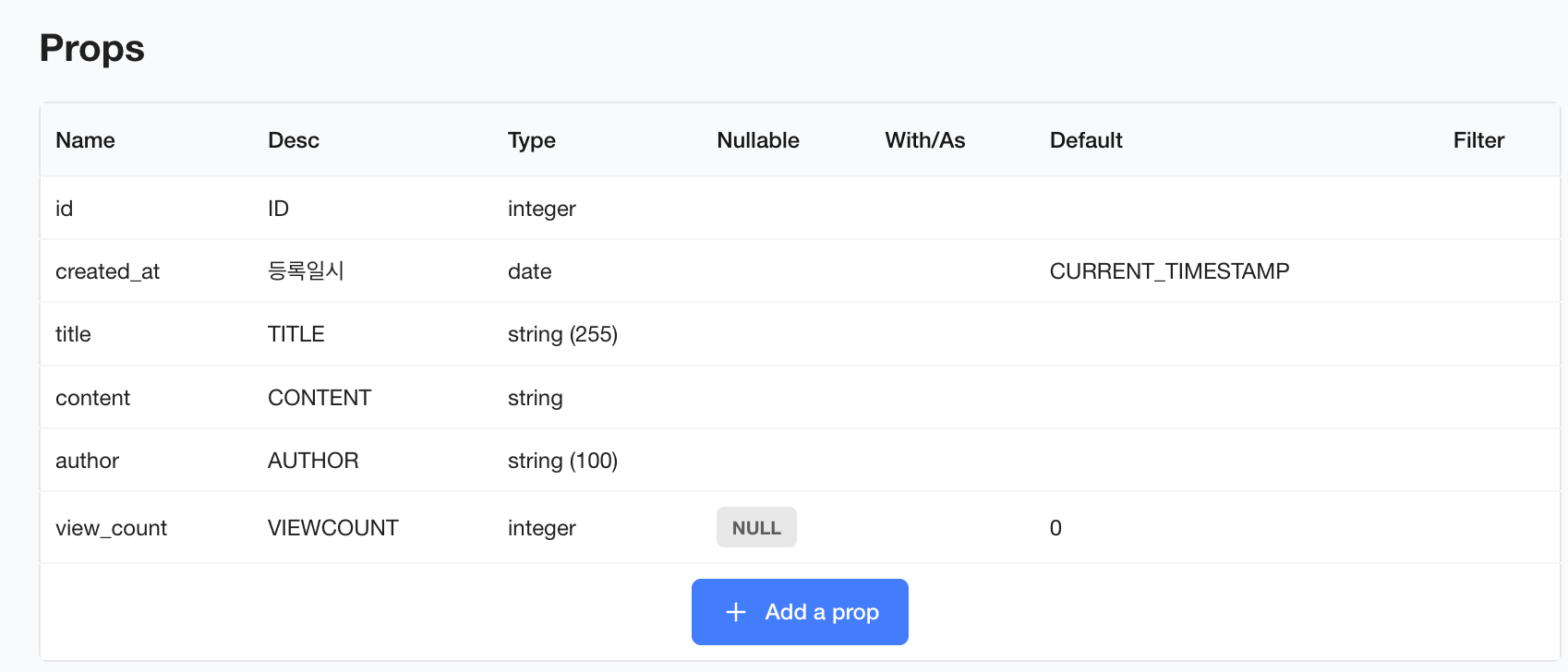
- Define fields - Set types, constraints, default values
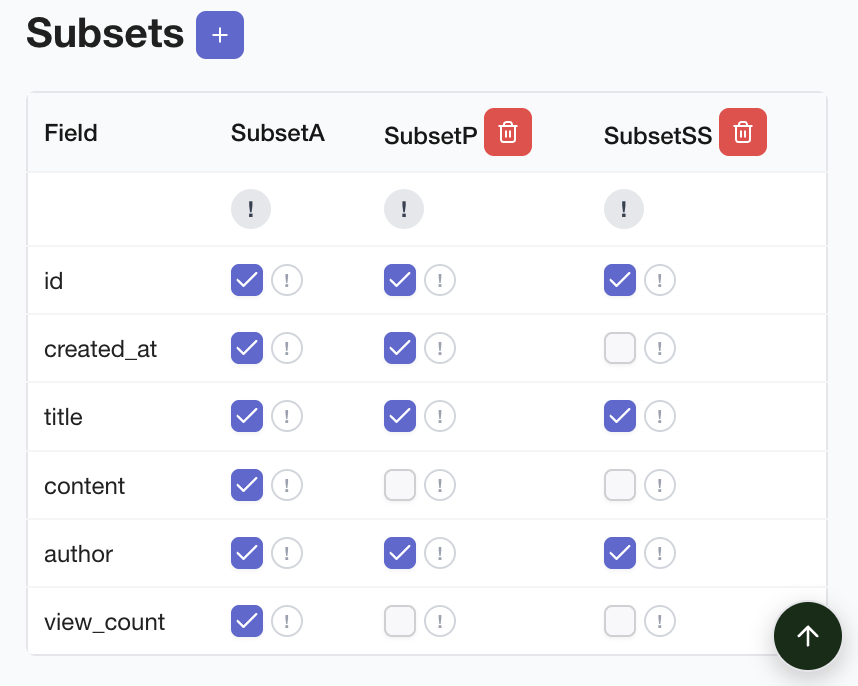
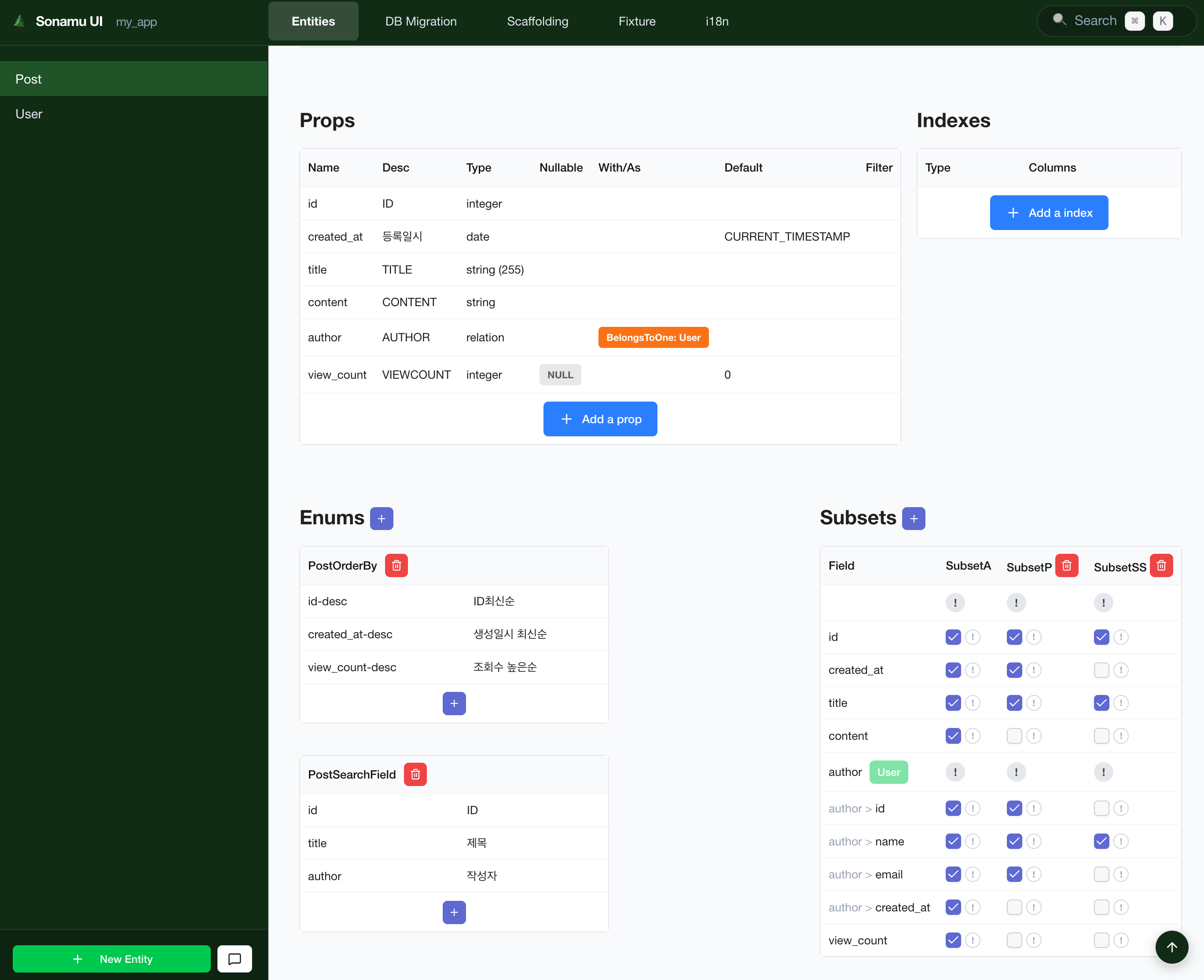
- Define Subsets - Define API response formats
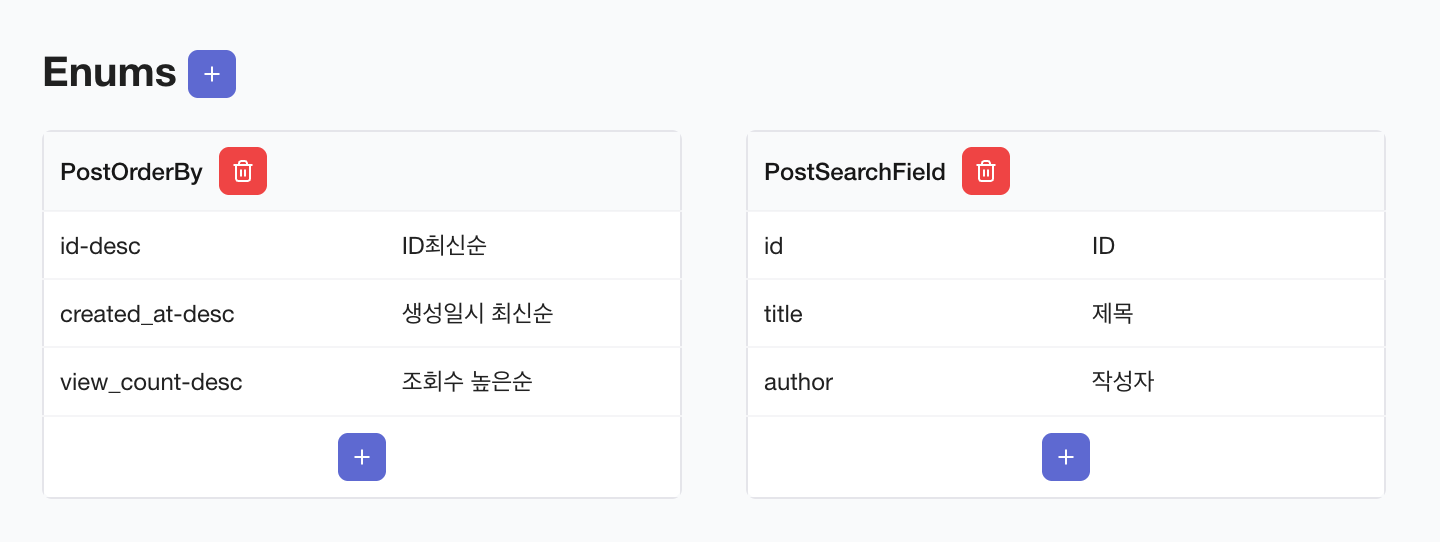
- Define Enums - Define sorting/search options
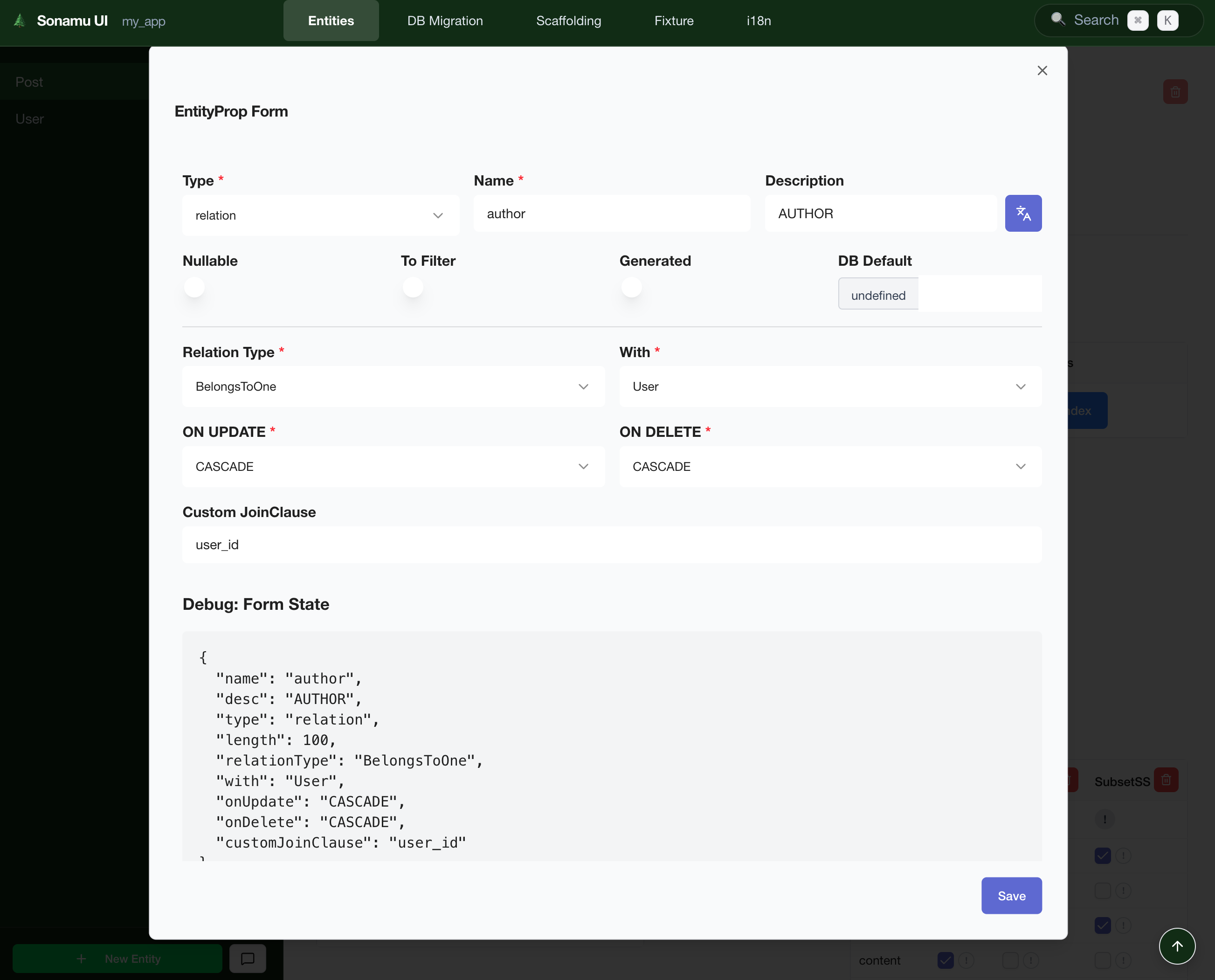
- Define Relations - Set relationships with other entities
- 1. Create Entity
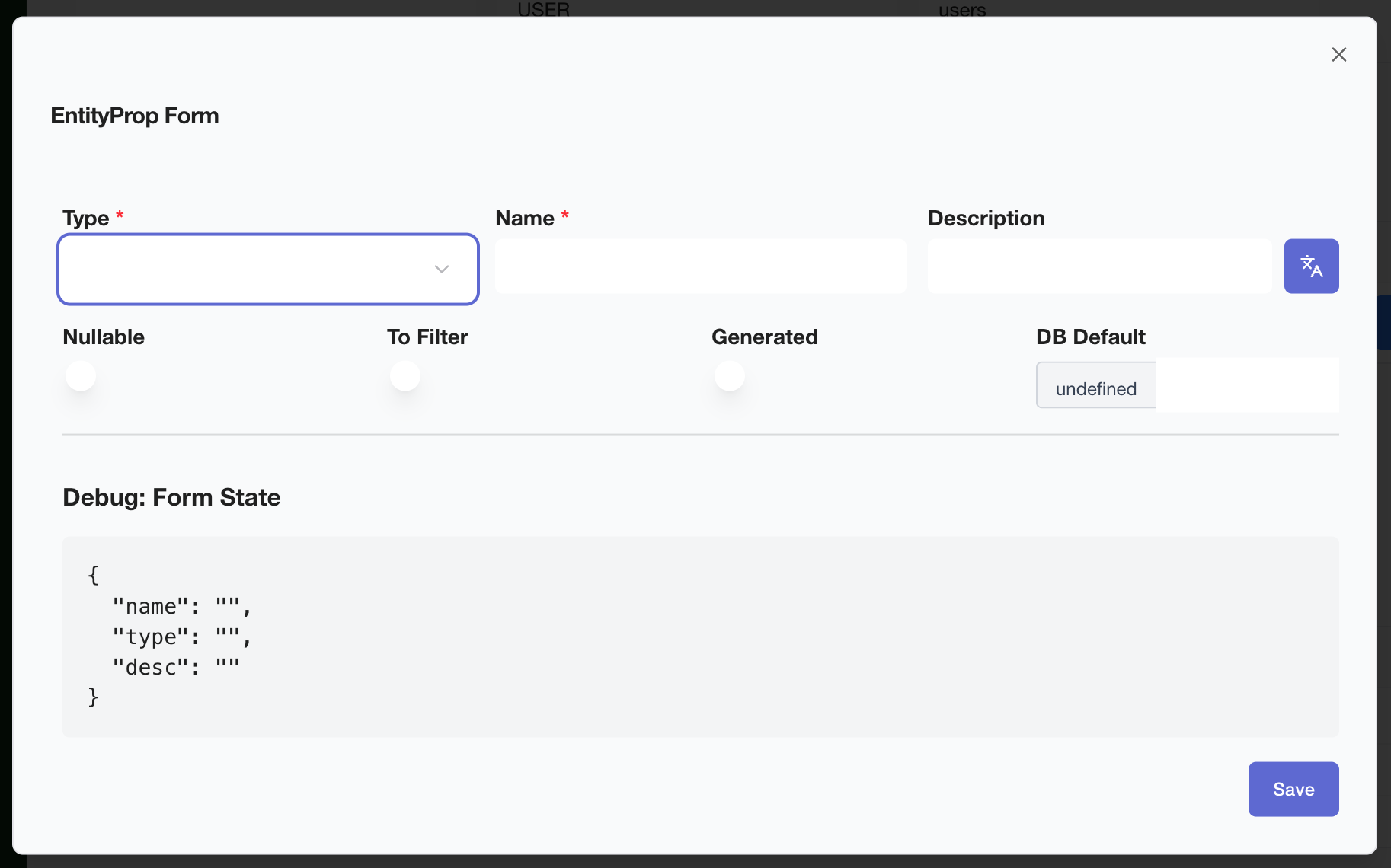
- 2. Add Basic Fields
- 3. Field Details
- 4. Define Subsets
- 5. Define Enums
- 6. Define Relations
- Result
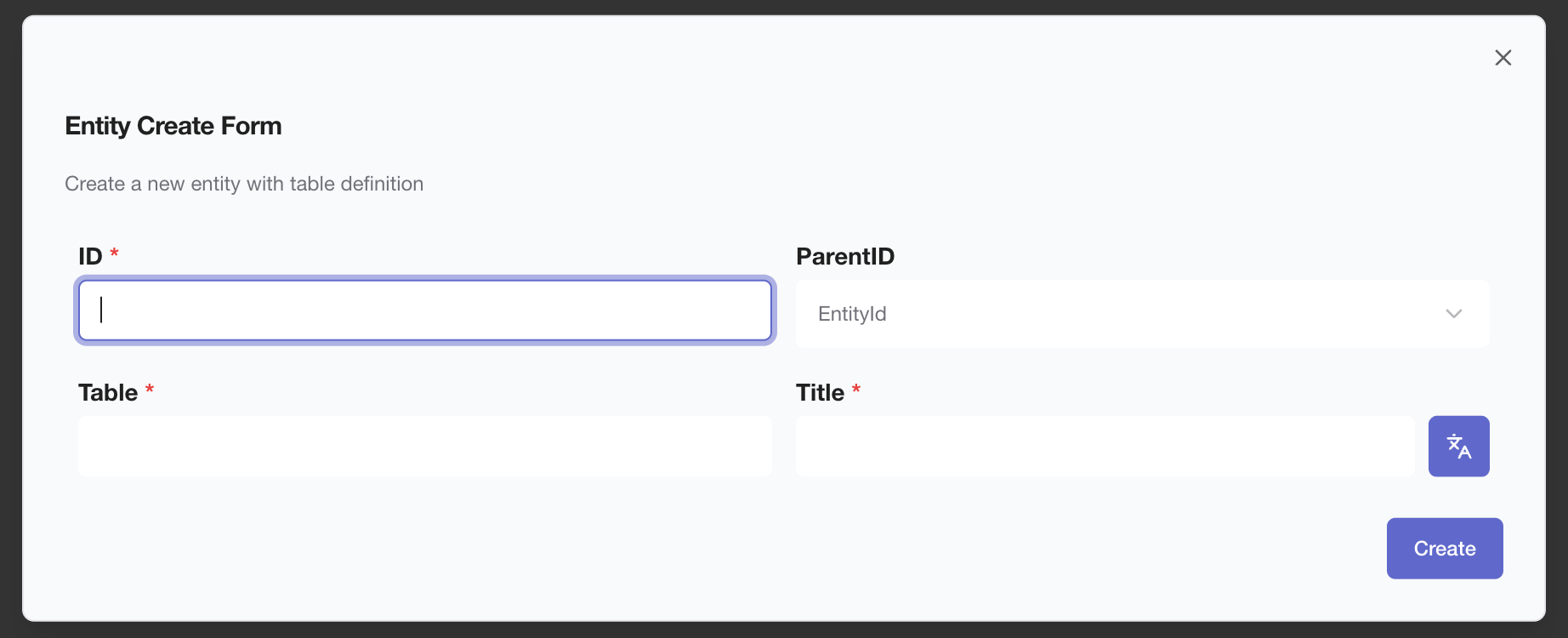
Create entity
Create Entity via CLI (Optional)
You can also use the CLI to create an empty entity:Learn More - Defining Entities - Entity
structure and configuration options - Using Sonamu UI
- Managing entities in the UI - Field Types - All available field types - Defining Relations - Setting up entity relationships - Defining Enums - Managing enumeration types - Entity Management - Sonamu UI Entity tab guide
Step 2: Migration
Apply the entity definition to the database.Migration in Sonamu UI
- Click Migration tab
- Generate Migration - Auto-generate SQL
- Review generated SQL
- Run Migration - Apply to database
Migration Execution
Migration via CLI (Optional)
Learn More - How Migrations Work -
Understanding the migration system - Creating
Migrations - SQL auto-generation mechanism -
Running Migrations - Safe migration execution -
Migration Tab - Managing migrations in Sonamu UI -
migrate CLI - Controlling migrations via CLI
Step 3: Scaffolding
After migration, auto-generate Model and test files.Scaffolding in Sonamu UI
- Click Scaffolding tab
- Select entity
- Select templates to generate:
- Model - Business logic and API endpoints
- Model Test - Test file
- Preview (optional) - Preview code to be generated
- Generate - Create files
Model Scaffolding
Scaffolding via CLI (Optional)
Generated Files
{entity}.model.ts- Includes basic CRUD APIs{entity}.model.test.ts- Test template
Learn More - Scaffolding Tab - Generating code
in UI - scaffold CLI - File scaffolding via CLI - Test
Scaffolding - Auto-generating test files
Step 4: Business Logic Implementation
Add business logic to the generated Model files.Model File Structure
user.model.ts
API Decorator
The@api decorator automatically registers methods as REST API endpoints:
HMR (Hot Module Replacement)When you modify Model files, the API server automatically restarts. No manual server restart needed!
Learn More - What is a Model? - Role and structure of
Models - @api Decorator - Auto-generating API endpoints -
Writing Business Logic - Implementing logic in Models -
BaseModel Methods - Built-in CRUD methods - Creating
APIs - Detailed API development guide - Puri
Query Builder - Writing type-safe queries -
Transactions - Safe data handling
Step 5: Synchronization (Sync)
Synchronize changes with the frontend.Auto Sync (HMR)
When running the dev server withpnpm dev, file changes are automatically synchronized:
- ✅ Model file change → Service file auto-regenerated
- ✅ Types file change → Auto-copied to Web project
- ✅ Entity definition change → Schema auto-regenerated
HMR Operation Logs in Terminal
Manual Sync
You can manually sync if needed:pnpm sync performs the following tasks:
- Copy sonamu.shared.ts - Copy common types and utilities to Web
- Detect changed files - Check changed files based on checksums
- Type sync - Copy
*.types.ts,*.generated.tsfiles to Web - Generate Services - Generate frontend Services based on Model APIs
- Config sync - Update
.sonamu.envfile
When Sync Command is Needed
- When you’ve modified multiple files with the dev server stopped
- When switching branches in Git
- When you think the sync state is broken
Learn More - Understanding Syncer - Detailed
synchronization mechanism - What Gets
Generated - Which files are generated -
How HMR Works - Understanding Hot Module Replacement
Step 6: Testing
Test the business logic you’ve written.Writing Test Files
Add test cases to the test file generated by scaffolding:user.model.test.ts
Running Tests
Test Execution Results in Terminal
Learn More - Writing Tests - Vitest-based test
structure - Test Scaffolding - Using test templates
- Creating Fixtures - Managing test data - What is Naite? - Test logging system
Step 7: Frontend Integration
Implement UI using the auto-generated Services.Generated Service Files
APIs defined in Models are automatically generated as frontend Services:web/src/services/UserService.ts (auto-generated)
Using in React Components
web/src/pages/UserProfile.tsx
Type SafetyServices and types are auto-synchronized with the backend, so type mismatch errors can be caught at compile time!
Learn More - How Services
Work - Auto-generation mechanism -
Using Services - Practical usage
guide - Shared Types - Backend-frontend type
synchronization
Complete Workflow Example
Let’s look at an example of the complete process of adding a feature.Scenario: Adding “Like” Feature
1
1. Modify Entity
Add
like_count field to Post entity2
2. Migration
sql ALTER TABLE posts ADD COLUMN like_count INTEGER DEFAULT 0; 3
3. Add Business Logic to Model
4
4. Auto Sync
HMR automatically: - Copies
post.types.ts → to Web - Adds addLike method to PostService.ts5
5. Frontend Implementation
6
6. Testing
Complete Development Flow
Development Tips
1. Entity First Principle
All development starts with entity definition. Clear data structures lead to clear APIs and UIs.2. Utilize Subsets
Pre-defining various Subsets can optimize API response sizes:- A (All): All fields (detail page)
- C (Compact): Main fields only (list page)
- S (Summary): Minimal fields (preview)
3. Relation Design
Clearly defining relationships between entities auto-generates JOIN queries.4. Test-First Development
For complex business logic, writing tests first enables safer development.5. Utilize HMR
During development, keeppnpm dev running and just modify files - they’ll sync automatically.
6. When Problems Occur
If sync state seems wrong:- Restart dev server
- Run
pnpm syncmanually - Delete
sonamu.lockand restart
Next Steps
Now that you understand the development workflow, learn the following topics:How Sonamu Works
Understand Sonamu’s overall architecture and how it works.
Defining Entities
Learn entity structure and configuration options in detail.
Creating Models
Learn how to write Model files and develop APIs.
Writing Tests
Learn how to effectively write tests using Vitest.