Entity Tab Structure
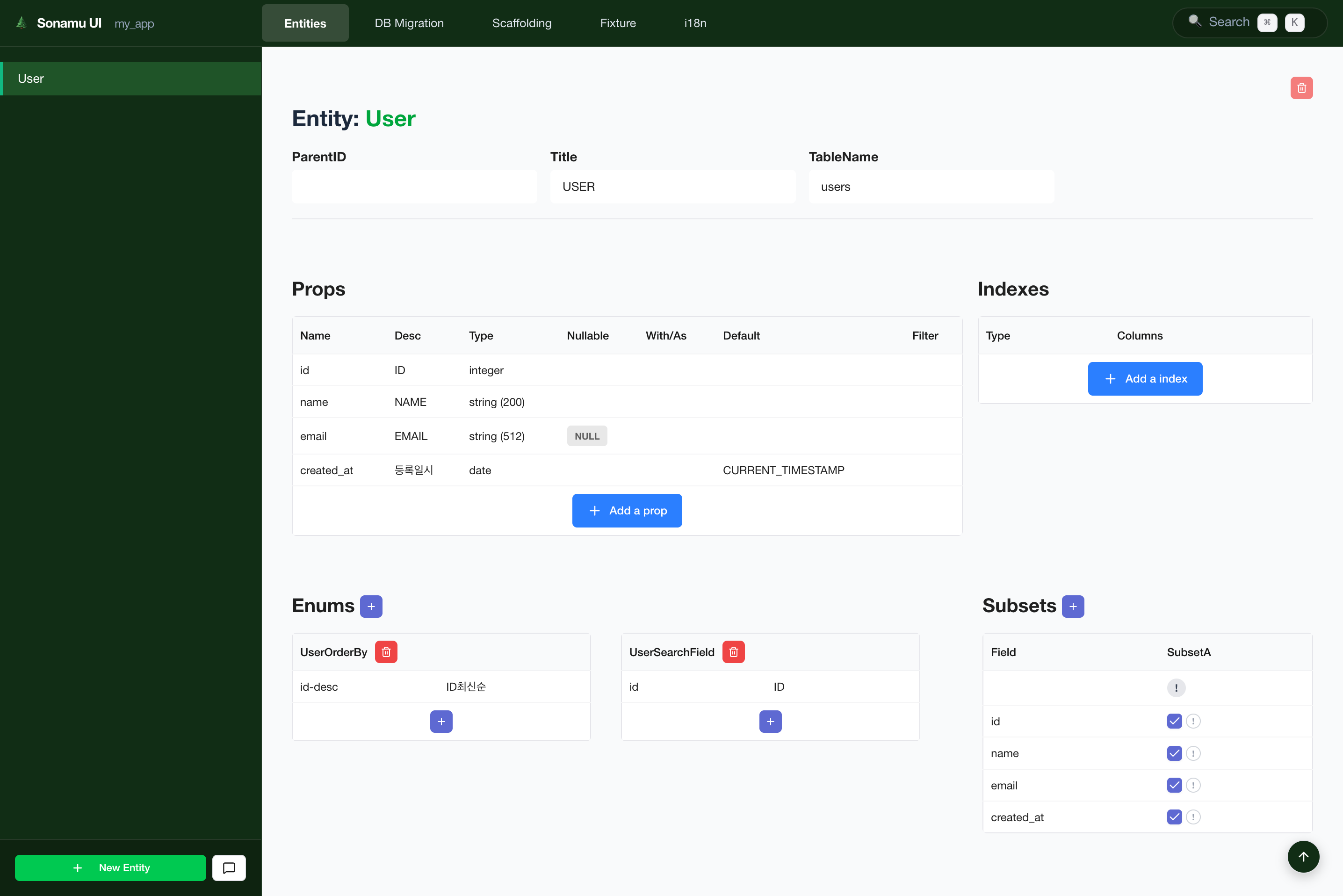
Entity Management Screen
- Left Sidebar: Entity list and new Entity add button
- Right Content: Selected Entity details (Properties, Indexes, Relations, Subsets, Enums)
Creating an Entity
1. Click New Entity Button
Click the [+ New Entity] button at the bottom of the sidebar.2. Enter Entity Information
When the modal opens, enter the following information:If you specify a Parent Entity, it becomes a child of that Entity. Example:
Order →
OrderItem3. Add Basic Properties
Created Entities include these basic fields by default:Editing Properties
Adding a Property
- Click [+ Add Property] button
- Enter Property information:
Supported data types:
- String:
string(falls back totextwithout a length),uuid,searchText - Number:
integer,bigInteger,number,numeric(precision/scale) - Date:
date - Other:
boolean,enum,json,virtual,vector,tsvector,relation
Most scalar types also have an array form such as
integer[] or string[]. See Field
Types for the full list.Editing a Property
- Click on a Property row to enter edit mode
- Modify values
- Click elsewhere or press Enter to save
Deleting a Property
Click the [×] button on the Property row.Managing Indexes
Adding an Index
- Scroll to the Indexes section
- Click [+ Add Index] button
- Enter Index information:
Index types:
- index: Regular index (improves search performance)
- unique: Unique index (prevents duplicates)
- hnsw / ivfflat: pgvector vector indexes
Full-text search is not a separate index type. Use a
searchText/tsvector prop together with the
using: "gin" option — see pgvector
setup.Composite Index
Select multiple fields to create a composite index:where is emitted as a PostgreSQL partial index predicate. Treat it as raw SQL: do not build it from
user input.
Managing Relations
belongsTo (N:1 Relationship)
Meaning: “This Entity belongs to another Entity” Example:Post belongs to User
- Click [+ Add] button in the belongsTo section
- Enter information:
Generated code:
hasMany (1:N Relationship)
Meaning: “This Entity has multiple of another Entity” Example:User has multiple Posts
- Click [+ Add] button in the hasMany section
- Enter information:
Generated code:
Managing Enums
Use Enums when a field can only have limited values.Adding an Enum
- Click [+ Add Enum] button in the Enums section
- Enter Enum information:
Generated code:
AI-Assisted Entity Creation
Click the [💬 AI] button at the bottom of the sidebar to open the AI chat interface.Create Entity with AI
Example prompt:Modify Entity with AI
Example prompt:Practical Example
E-commerce Product Entity
src/application/product/product.entity.json
Applying Changes
After modifying an Entity, you need to create and run a migration to reflect changes in the database.Workflow
- Edit Entity: Modify Entity in the UI
- Create Migration: Generate migration in the Migration tab
- Run Migration: Run migration to apply to DB
- Scaffolding: Generate Model and test code
Entity files (
.entity.json) are automatically saved when modified in the UI.Next Steps
Migration Tab
Create and run migrations
Scaffolding Tab
Auto-generate Model code